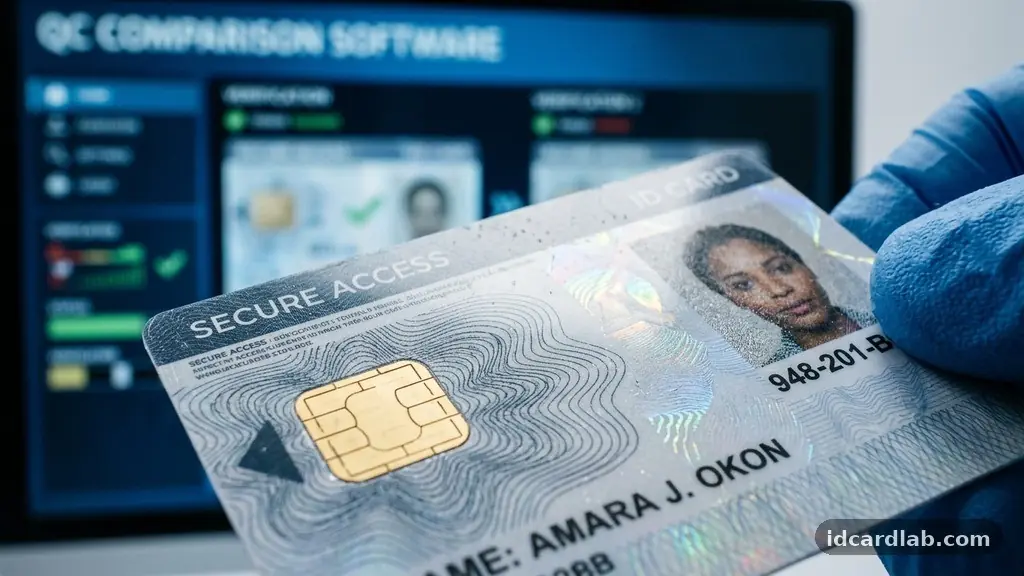
Creating a professional credential requires careful attention to detail, as a well-planned ID card design checklist helps ensure your final product is both functional and secure. Before you send your files to a printer, verifying elements like image resolution, color accuracy, and data placement can save you from costly reprints and security vulnerabilities.
Whether you are issuing simple visitor passes or complex access control badges, small oversights in the prepress stage often lead to significant frustration later. This article provides a comprehensive overview of the technical and aesthetic factors you must evaluate to ensure your printed cards meet industry standards for clarity, durability, and professional presentation.
Verifying Image Quality and Resolution
The most common mistake in card production is using low-quality assets that appear pixelated once scaled to the size of a standard CR80 card. You must ensure all logos, photographs, and graphic elements are saved at a minimum of 300 DPI to maintain sharpness.
When a file is pulled from a web source, it is often set to 72 DPI, which is insufficient for physical printing. Always source your original high-resolution imagery from a master file rather than a compressed web version to guarantee the final output is crisp.
Check your portrait photos specifically for lighting and contrast issues before embedding them into your software. If a photo is too dark, the printer will struggle to render facial features, potentially rendering the card useless for identification purposes.
Use a consistent background for all personnel photos to maintain a professional appearance across your organization. If you are using a template, ensure that the placeholder container for the image is correctly proportioned to avoid stretching or distorting the individual’s face.
Mastering Color Profiles and Printing Standards
Professional card printers operate using a CMYK color profile rather than the RGB mode used by computer monitors. If you design in RGB, the colors may shift dramatically when converted to the four-color process used by your hardware.
To avoid disappointment, set your design software to CMYK mode from the very start of your project. This simple step ensures that the vibrant blues or corporate reds you see on your screen translate accurately to the physical PVC card stock.
Consider the limitations of your specific printer model when choosing your color palette. Some entry-level thermal printers struggle with gradients or subtle color transitions, which can result in banding or uneven tones.
Stick to solid, bold colors for backgrounds and text where possible to ensure consistency across large batches. If your brand identity requires precise color matching, perform a test print on a scrap card to see how the ink or ribbon reacts to the specific finish of your material.
Understanding Bleed Margins and Safe Zones
Every professional designer knows that a design must extend beyond the edge of the card to avoid white slivers appearing on the finished product. This extra area is known as the print bleed, and it is essential for accounting for the slight mechanical shifts that occur during the printing process.
Ensure that any background colors or images extend at least 1/8th of an inch beyond the final trim size of your card. Failing to set these margins correctly often results in a thin, unsightly white border that cheapens the look of your credentials.
Conversely, keep all vital information—such as names, titles, and IDs—well within the safe zone of the card. The safe zone is the area that is guaranteed not to be trimmed off during production.
If your text is too close to the edge, it risks being cut off or appearing lopsided if the card shifts slightly in the printer tray. Use your software’s alignment tools to center your text and logos, leaving enough “breathing room” around the edges to create a balanced, professional aesthetic.
Optimizing Typography for Readability
Font legibility is often overlooked, yet it is the most critical factor for security personnel who need to verify identities at a distance. Avoid overly ornate or script fonts that are difficult to scan with the naked eye, especially when scaled down to fit on a small card.
Sans-serif typefaces typically perform best on ID cards because they remain sharp and clear even when printed at smaller point sizes. Ensure that your text color provides sufficient contrast against the background; light grey text on a white background is nearly impossible to read under fluorescent lighting.
Consider the hierarchy of information on your card to guide the viewer’s eye. The cardholder’s name should be the most prominent element, followed by their title or department. Secondary information, such as expiration dates or internal ID numbers, can be smaller but must remain distinct.
If you are printing a large volume of cards, standardize your font choices and sizes across all templates. Consistency not only looks better but also helps staff identify valid credentials quickly when they are checking multiple individuals at once.
Integrating Technology and Security Features
Modern ID cards are rarely just plastic; they often serve as keys to buildings, networks, or payment systems. If your card includes a magnetic stripe or requires smart card encoding, you must verify that these elements are placed exactly according to ISO standards.
A magnetic stripe must be positioned at a specific distance from the edge to ensure it aligns with the reader head on your door locks or point-of-sale terminals. Even a millimeter of displacement can cause a “read error” that frustrates employees and visitors alike.
For facilities using RFID technology, ensure that your design does not interfere with the internal antenna embedded in the card. Avoid placing metallic inks or heavy foil stamping directly over the area where the chip is located, as this can shield the signal and prevent the card from working.
If you are using barcodes, test them thoroughly before printing a full batch. A barcode scanning failure is usually caused by insufficient contrast between the bars and the background, or by the barcode being too small for the scanner to interpret.
Common Design Elements to Review
Before you finalize your layout, review this checklist to ensure you haven’t missed any essential components. These elements help maintain both the functional and aesthetic integrity of your final output.
- Company Logo: Ensure it is a vector file and not a blurry low-resolution image.
- Expiration Date: Place this clearly so security can perform a quick visual check.
- Security Hologram: Verify that your holographic overlays are applied in a way that doesn’t obscure the photo.
- Department Labels: Use color-coding or clear text to distinguish between staff, contractors, and visitors.
- Emergency Contact Info: Consider adding a small, readable line on the back for safety protocols.
- Signature Panel: Ensure there is a white matte area if manual signatures are required.
Comparing Different Card Production Methods
The method you choose for printing influences how you should approach your design. Thermal transfer and retransfer printers offer different levels of durability and print quality, which impacts how your design elements appear on the finished surface.
| Feature | Direct-to-Card (Thermal) | Retransfer (Over-the-Edge) |
|---|---|---|
| Print Quality | Standard, slight white edges | High, full-bleed coverage |
| Durability | Moderate, prone to wear | High, extra protective layer |
| Cost per Card | Budget-friendly | Higher investment |
| Best For | Simple employee badges | High-security, smart cards |
Retransfer printing is the gold standard for those who require full-bleed, professional-looking credentials. Because the image is printed onto a clear film and then bonded to the card, you can achieve a higher resolution and better coverage over smart card chips.
If you are using PVC card stock that has been pre-punched for lanyards, be aware that retransfer printers handle the uneven surface of the slot much better than standard thermal printers. You can learn more about official standards for physical security credentials through the Department of Homeland Security physical security resources.
Troubleshooting Common Printing Errors
Even with the best preparation, you might encounter issues during the printing process. If you notice horizontal white lines across your cards, it is likely a sign of a dirty print head or a damaged ribbon.
Cleaning your printer regularly according to the manufacturer’s instructions is the most effective way to prevent these artifacts. If the colors seem “washed out” or inconsistent, check your ribbon settings in the driver software to ensure they match the type of ribbon you have installed.
Another common issue is card warping, which often happens when the heat settings are too high for the specific thickness of your PVC card stock. If your cards are coming out of the printer curved or bent, reduce the heat intensity in your print driver incrementally until the cards lay flat.
Always keep your unprinted cards in a dust-free environment, as static electricity can attract particles that create tiny white spots on your final design. A clean, controlled workspace is just as important as a well-designed digital file.
Frequently Asked Questions
Why does my printed ID card look different from the screen version?
The primary cause is the difference between the RGB color space of your monitor and the CMYK color profile used by the printer. Monitors emit light to create colors, while printers use physical ink or ribbons, which inevitably leads to a slight shift in tone and saturation.
What is the standard size for a professional ID card?
The industry standard is the CR80 card, which measures 3.375 inches by 2.125 inches. Always ensure your design software is set to these exact dimensions before you begin your layout to avoid scaling issues.
How can I ensure my barcode is scannable?
To guarantee successful barcode scanning, ensure there is high contrast between the bars and the background, such as black bars on a white field. Avoid using colors or textures behind the barcode, as these can confuse the scanner’s laser or camera.
Should I use a matte or glossy finish for my ID cards?
This depends on your needs; glossy cards look more professional and vibrant, while matte cards are better at hiding fingerprints and scratches over time. Many organizations choose a glossy finish for the front and a matte finish for the back where signatures or notes might be added.
How often should I clean my ID card printer?
You should run a cleaning cycle every time you change the ribbon, or at least every 500 to 1,000 cards. This prevents dust buildup on the print head, which is the leading cause of lines and missing pixels on your finished cards.
Final Thoughts on Card Production
Reviewing your design before you commit to a large print run is the most effective way to ensure your organization’s credentials look professional and function as intended. By paying attention to details like DPI, CMYK color profiles, and the correct placement of technology features, you avoid the common pitfalls that lead to wasted time and materials. A consistent ID card design checklist helps you maintain your brand standards while ensuring that every card is readable and secure.
As you move forward with your badge production, keep these technical guidelines in mind to achieve the highest quality results. Feel free to revisit these steps whenever you update your templates or switch to a new printer model.