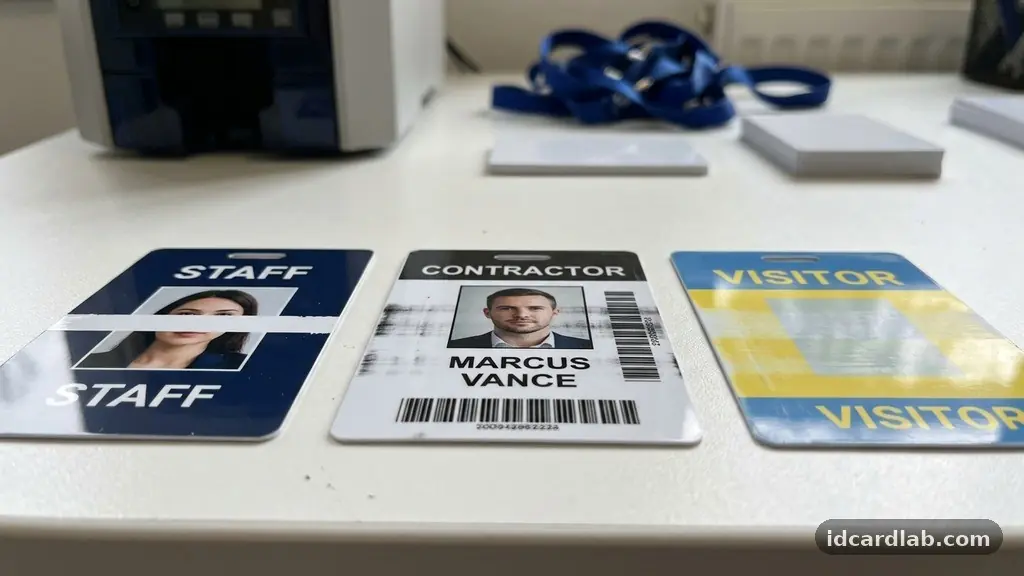
Dealing with ID card printing errors can be a frustrating experience, especially when you are working on a deadline or managing a high-volume badge production project. Whether you are seeing streaks, blank patches, or persistent jams, these technical hurdles often stem from simple maintenance oversights or environmental factors. Understanding the mechanics of your card printer is the first step toward achieving consistent, professional results every time.
By identifying the root cause of common issues, you can implement effective solutions that save both time and money. This article provides a practical look at how to maintain your equipment and resolve common faults to keep your identification program running without unnecessary interruptions.
Common Print Quality Issues
The most frequent complaint among users involves inconsistent image quality or unexpected marks on the surface of the card. These issues often manifest as thin, vertical white lines or blotchy areas where the ink failed to transfer correctly.
In many cases, these white lines are a direct result of dust contamination or debris blocking the print head. When a microscopic particle sits between the ribbon and the card, the thermal transfer process is interrupted, leaving a tiny gap in the print.
Another common visual error is color misalignment, where the different color panels—yellow, magenta, cyan, and black—fail to align perfectly. This creates a blurry or “ghosting” effect that makes text hard to read and images look unprofessional.
This usually happens when the card slips slightly during the printing cycle or if the internal sensors are not tracking the card movement accurately. You can often correct this by ensuring the card path is clear and performing a sensor calibration through the printer software.
Dye sublimation printers rely on precise heat control to transfer color from the ribbon to the plastic. If your cards appear faded or have inconsistent saturation, the print head may be operating at an incorrect temperature.
You should verify your driver settings to ensure you are using the correct color profiles for your specific card stock. Using low-quality or incompatible PVC cards can also cause these issues, as the surface coating may not accept the dye properly.
Managing Ribbon Breakage
Ribbon breakage is a mechanical failure that stops the printing process instantly, often requiring a manual reset of the internal components. This usually occurs when the tension within the printer becomes too high, causing the thin plastic film of the ribbon to snap under pressure.
If you are printing cards with high-density colors or complex graphics, the heat generated can sometimes cause the ribbon to fuse to the card surface. When the printer attempts to pull the card away, the ribbon tears rather than peeling off smoothly.
To minimize these incidents, check the settings in your printer driver to ensure the heat intensity is not set too high for the ribbon type you are using. If your ribbon is brittle, it might be an indication that it has been stored in an environment with extreme humidity or temperature fluctuations.
Always store your ribbons in a cool, dry place and try to use them within the manufacturer’s suggested shelf life. If you experience frequent snapping, clean the rollers thoroughly, as sticky residue can create uneven drag on the ribbon path.
Addressing Card Jams and Mechanical Obstructions
A card jam is perhaps the most disruptive error in any badge production workflow. It happens when a card becomes stuck within the printer’s transport mechanism, preventing the device from completing its cycle.
This is often caused by using cards that are slightly outside of the standard thickness specifications or using cards that are dirty or warped. Always ensure you are using high-quality, clean PVC cards to maintain consistent performance.
If a card does get stuck, never force it out with metal tools, as this can permanently damage the sensitive print head. Instead, open the printer casing and gently guide the card through the exit path if possible.
Many modern printers have a “manual feed” or “eject” button that can help clear the path without requiring physical force. You can find detailed technical guidance on specific models through the National Institute of Standards and Technology, which provides resources on identification technology standards and hardware best practices.
Static electricity is an often overlooked cause of feeding issues and jams. In dry environments, static buildup can cause multiple cards to stick together or cling to the internal components of the printer.
Using an anti-static mat or an ionizer can help mitigate this, but simply ensuring the printer is kept in a climate-controlled room is usually sufficient. Regularly cleaning the feed rollers with an adhesive cleaning card will also remove the dust and oils that contribute to feeding failures.
The Importance of Cleaning Rollers
Cleaning rollers are the unsung heroes of your ID card printer. Their primary job is to pick up dust and debris from the surface of the card before it reaches the print head.
When these rollers become saturated with dirt, they stop cleaning and start transferring that debris directly onto your cards. This leads to the “white lines” mentioned earlier and can eventually cause permanent damage to the delicate heating elements.
You should perform a cleaning cycle every time you change your printer ribbon. This is a simple, cost-effective habit that extends the life of your equipment significantly.
Most printers include a specialized cleaning card that you run through the feed path. If you are operating in a dusty environment, such as a warehouse or a construction site office, you may need to increase the frequency of these cleanings.
| Maintenance Task | Frequency | Benefit |
|---|---|---|
| Cleaning Rollers | Every ribbon change | Prevents print head damage |
| Print Head Cleaning | Every 500-1000 cards | Ensures crisp image quality |
| Firmware Update | As released | Fixes known software bugs |
| Sensor Calibration | After major jams | Maintains print alignment |
Software and Connectivity Troubleshooting
Sometimes, the issue is not with the hardware but with the communication between your computer and the printer. A stuck print spooler is a common culprit when the printer appears to be “thinking” but never actually starts the job.
If you send a command and nothing happens, try clearing the print queue on your computer and restarting both the printer and the host machine. This resets the communication handshake and often resolves temporary software glitches.
Firmware updates are another critical aspect of maintaining a healthy printer. Manufacturers release these updates to patch bugs, improve speed, and sometimes even add new features or compatibility with newer operating systems.
If you are experiencing strange errors that don’t seem to have a physical cause, check the manufacturer’s website to see if a newer firmware version is available. Installing these updates can resolve persistent communication issues that troubleshooting the hardware alone cannot fix.
Network-connected printers face additional challenges, such as IP address conflicts or signal drops. Ensure that your printer has a stable, wired connection if possible, as wireless signals can sometimes be interrupted by other office equipment.
If you must use a wireless connection, verify that the signal strength is strong enough to handle the data packets required for high-resolution images. A simple ping test from your computer can help determine if the printer is accessible on the network.
Preventing Environmental Contamination
Dust contamination is the silent enemy of high-quality badge printing. Even a tiny piece of lint can cause a noticeable blemish on a finished card.
Keep your printer in a dedicated, clean space rather than on a shared desk where food, paper scraps, or high traffic might increase the amount of airborne dust. Covering the printer when it is not in use can also prevent dust from settling on the internal components overnight.
Humidity also plays a significant role in the success of your prints. If the air is too dry, static electricity becomes a major problem, as mentioned before.
If the air is too humid, the cards themselves may absorb moisture, leading to warping or poor ink adhesion. Aim to keep the humidity in your office between 30% and 50% to maintain the integrity of both the cards and the ribbon.
Consider the placement of your card supplies as well. Keep your stock of blank PVC cards in a sealed container to ensure they remain free of dust and contaminants.
When you handle cards, try to touch only the edges to avoid transferring skin oils onto the printing surface. These oils can prevent the dye from bonding properly, leading to patches that look washed out or incomplete.
When to Call for Professional Support
Despite your best efforts, there are times when a problem might be beyond simple troubleshooting. If you have cleaned the print head, calibrated the sensors, and updated the firmware but still see the same error, there may be a deeper hardware fault. For example, a damaged print head usually requires a professional technician to replace it, as it is a delicate and expensive component.
Keep a record of the error codes displayed by your printer. Most modern systems provide a specific code or a flashing light pattern that corresponds to a specific issue in the user manual.
Providing this information to technical support will help them diagnose the problem much faster. Don’t hesitate to reach out to the manufacturer or your vendor if you are under warranty, as attempting to repair internal circuitry yourself could void your coverage.
Documenting your issues is also a good practice for long-term management. By tracking how often you encounter specific errors, you might notice patterns, such as a specific type of card stock causing more jams than another.
This data can help you make better decisions about which supplies to purchase in the future. It also helps you spot when a printer is reaching the end of its functional lifespan and needs to be replaced.
Frequently Asked Questions
Why do I keep seeing white lines on my ID cards?
The most common cause is dust contamination on the print head. When a particle of dust blocks the heat from the print head, the ink cannot transfer, leaving a white line. Regular cleaning with a specialized card or swab usually resolves this issue.
How often should I clean my printer?
It is recommended to run a cleaning cycle every time you install a new ribbon. If you work in a dusty environment, you should clean it even more frequently to prevent debris from building up on the rollers and the print head.
What should I do if my ribbon keeps breaking?
Check your print density settings to ensure they are not set too high, as excessive heat can cause the ribbon to stick to the card. Also, ensure your cards are clean and that the printer environment is not too humid or too cold, as these factors affect the ribbon’s durability.
Is it safe to use third-party ribbons?
While third-party supplies are often cheaper, they may not meet the strict chemical and physical specifications required by your specific printer. Using them can lead to poor image quality, more frequent jams, and potentially damage the print head, which is why original manufacturer supplies are generally recommended.
How do I know if my print head is damaged?
If you see a permanent white line that remains in the exact same spot on every single card, regardless of cleaning or changing the ribbon, the print head may have a “dead pixel.” This is a permanent hardware failure that requires the print head to be replaced by a professional.
Conclusion
Managing ID card printing errors is largely a matter of consistent maintenance and attention to detail. By keeping your equipment clean and ensuring your environment is free of excess dust and static, you can prevent the vast majority of common issues. When problems do arise, a systematic approach—checking the sensors, the ribbon path, and the software settings—will help you get back to work quickly.
Remember that your printer is a precision instrument, and treating it with care will yield professional, high-quality results for your organization. Should you find yourself stuck, refer back to your user manual or reach out to your support representative to ensure your equipment remains in top condition.