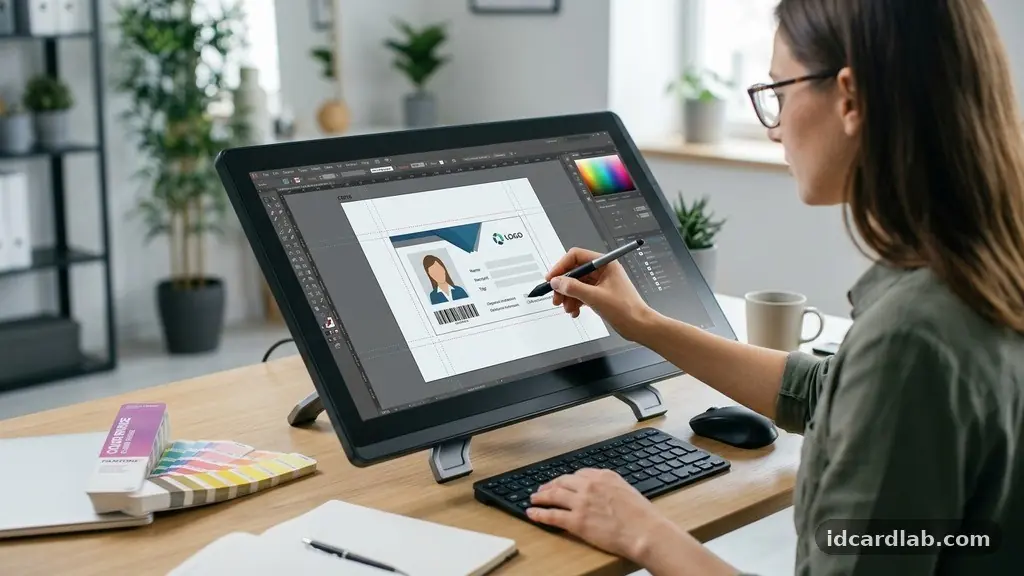
Preparing an ID Card Design for High-Quality Printing requires more than just a sharp logo and a clean font. Achieving professional results involves understanding how digital files translate onto physical plastic substrates. When you get the technical specifications right, you avoid blurry images, washed-out colors, and misaligned text.
By focusing on resolution, color management, and proper layout techniques, you ensure your credentials look authoritative and represent your organization accurately. This guide provides the foundational steps needed to move from a screen-based concept to a high-fidelity printed product that stands up to daily wear and tear.
Understanding Standard Dimensions and Specs
The most critical first step in preparing an ID Card Design for High-Quality Printing is adhering to the industry-standard size. Almost all professional card printers utilize the CR80 dimension, which measures exactly 3.375 inches by 2.125 inches.
If your design software is set to anything else, you will face scaling issues that distort your imagery or crop essential text. Always set your canvas size to these exact measurements at the very beginning of your workflow.
Beyond the physical dimensions, you must account for the bleed area. Printers often have a slight margin of error when feeding cards, so extending your background colors or patterns slightly beyond the edge of the card prevents thin white slivers from appearing on the sides.
A standard bleed of 0.125 inches is usually sufficient for most desktop and industrial printers. You should also keep all vital information, such as names and ID numbers, well within a safety margin of at least 0.1 inches from the edge.
Mastering Resolution for Sharp Prints
High-quality output is impossible without the correct DPI resolution. You should work at a minimum of 300 DPI (dots per inch) to ensure that your text is crisp and your images are clear.
Designing at 72 DPI, which is standard for web graphics, will result in pixelated, blurry prints that look unprofessional. When you scale a low-resolution image up to fit an ID card, you lose significant detail that cannot be recovered.
For the best results, utilize vector graphics whenever possible. Programs like Adobe Illustrator allow you to create logos and text that are resolution independent, meaning they can be scaled to any size without losing quality.
If you must use raster images like photographs, ensure the original file is high resolution before importing it into your layout. Avoid downloading images from websites, as these are often compressed and unsuitable for physical print media.
Color Management and CMYK Conversion
Digital screens use the RGB color mode, which relies on light to create vibrant colors. However, physical printers use the CMYK color mode, which mixes cyan, magenta, yellow, and black inks or dye ribbons.
If you design in RGB, the colors you see on your monitor will likely look different once printed on PVC card stock. Always convert your document to CMYK mode during the design phase to see a more accurate representation of the final output.
If your organization has specific brand colors, use ICC profiles to ensure color consistency across different printing devices. These profiles act as a bridge, telling the printer exactly how to interpret the color data in your file.
If you are printing on a colored background or a specialty card, remember that the ink might interact with the substrate color. Printing a white underlay can sometimes help colors appear more vibrant and accurate on non-white cards.
Choosing the Right File Formats
Your choice of file format impacts how the printer processes your design. PDF files are generally the industry standard because they preserve the integrity of your fonts, vector paths, and images regardless of the software used to open them.
When exporting your final design, ensure you embed all fonts so the printer doesn’t encounter missing character errors. If you are using layers, flattening the file can sometimes prevent unexpected rendering issues during the print job.
Avoid sending raw project files like PSD or AI files unless specifically requested by your print provider. These files can be heavy and may include hidden layers or non-flattened elements that complicate the printing process.
A high-quality, print-ready PDF with proper crop marks will always yield the most consistent results. If you need to include variable data, such as unique names or employee photos, ensure your file structure allows for easy data merging.
Optimizing for Printing Technologies
The technology used to create your card influences how you should prepare your file. Dye sublimation is the most common method, where heat transfers dye from a ribbon onto the card surface.
This process creates smooth, continuous tones, making it excellent for high-quality portraits and logos. However, it requires a very clean design without excessive gradients that might stress the ribbon capacity.
Thermal transfer printing, on the other hand, is often used for black text or barcodes. This method is highly precise and excellent for high-contrast elements.
If your design includes a magnetic stripe or smart card encoding, you must leave that specific area of the card clear of any printing. Printing over these components can cause mechanical failures and prevent the card from being read by scanners.
| Feature | Dye Sublimation | Thermal Transfer |
|---|---|---|
| Best For | Full-color photos | Text and barcodes |
| Detail Level | High (Continuous) | Very High (Sharp) |
| Speed | Moderate | Fast |
| Cost per card | Higher | Lower |
Managing Variable Data and Layouts
Most ID card projects involve more than just a static background design. You likely need to manage variable data like employee names, job titles, and unique ID photos.
Organizing your template to accommodate these elements is crucial for a professional look. Aligning text boxes to a consistent grid ensures that every card in a batch looks identical in layout.
Consider the following elements when setting up your variable data workflow:
- Use a consistent font size for all names to maintain visual hierarchy.
- Ensure photo placeholders are cropped to the same aspect ratio for uniformity.
- Verify that your barcode placement does not interfere with the magnetic stripe area.
- Include a clear space for a signature panel if required for security.
- Use high-contrast text colors against your background to ensure readability.
Security Features and Visual Integrity
Adding security features is a common requirement for organizations needing to verify identities. Elements like holograms, UV ink, or micro-text can be integrated into your design to prevent tampering.
When designing for these features, you must coordinate with your printer manufacturer to understand their specific placement requirements. These elements often require a specialized layer in your design file that the printer recognizes as a separate pass.
Even without high-end security, you can improve the perceived quality of your cards through simple design choices. Avoid cluttering the card with too much information; focus on the most relevant details like the person’s name and the company logo.
A clean, minimalist design is often more effective at preventing forgery than a complex, messy one. For further technical guidance on card security standards, you can review resources from the International Organization for Standardization regarding identification cards.
Troubleshooting Common Print Issues
Even with careful preparation, issues can arise during the print run. If your cards are coming out with streaks, it often indicates a dirty print head or a worn ribbon.
Clean your printer regularly according to the manufacturer’s manual to ensure the best output. If the colors look muddy, check your CMYK conversion and ensure you are not using “Rich Black” (a mix of all four colors) for small text, as this can cause registration errors.
If you notice that your text looks jagged, your DPI resolution is likely too low or your fonts were not properly rasterized. Always double-check your file export settings to ensure that the resolution is locked at 300 DPI or higher.
If the cards are misaligned, check your printer’s card guides to ensure they are set to the correct width for the standard CR80 card. A small adjustment to the feed mechanism can often solve recurring alignment problems.
Frequently Asked Questions
What is the best file format for printing ID cards?
The best format is a high-resolution PDF. It ensures that your fonts, vector graphics, and images remain sharp and are rendered exactly as you intended, regardless of the software the printer uses.
Why do my printed colors look different than on my monitor?
Monitors use RGB color, while printers use CMYK. Your screen produces colors by mixing light, while printers use physical ink or dye. Converting your design to CMYK in your software helps you preview how colors will appear in print.
How do I handle photos for multiple ID cards?
Use a template with a fixed photo placeholder. Before importing, crop all individual photos to the exact same aspect ratio to ensure they fit the template perfectly without being stretched or distorted.
Do I need to worry about the magnetic stripe area?
Yes, you should never print over the area where a magnetic stripe or smart chip resides. Doing so can cause the card to fail when swiped or inserted into a reader, and it may even damage the internal components.
How often should I clean my card printer?
You should clean your printer every time you replace the ribbon or at least every 500-1000 cards. Dust buildup on the print head is the leading cause of lines and spots on otherwise perfect designs.
Final Thoughts on Quality Production
Investing time into the design phase is the most effective way to guarantee a professional result. By following the standards for resolution, color modes, and layout, you eliminate the guesswork that leads to wasted materials and subpar credentials. Preparing an ID Card Design for High-Quality Printing is a repetitive process that rewards attention to detail and consistent file management.
Once you have a solid template, producing future batches becomes a streamlined task that maintains your organization’s professional image. Start by refining your current files using these best practices, and you will immediately notice the difference in the final, tangible product. Whether you are printing for a small team or a large enterprise, these technical steps ensure your cards remain secure, legible, and durable for their entire lifespan.